Garanzia di Download Sicuro, zero malware


Stable Diffusion prompts are used to define the rendering of images by AI across various aspects, such as the imagery, lighting, and style. Writing prompts for designs and images by hand can be quite challenging and can become nearly impossible when the goal is to derive a specific aesthetic for a custom design. Thus, it comes as no surprise that the majority of the user base employs various tools that convert design images to prompts, thus providing the user with accuracy and saving them key time in the rendering prompts.

In this article
Part 1: Quick Solution: Generating Stable Diffusion Prompts Faster
There are several ways to generate Stable Diffusion prompts from images, depending on your workflow and level of expertise:
- Online AI tools – Upload an image and quickly generate a prompt based on AI analysis of elements like objects, colors, and style.
- Browser-based extensions – Extract prompts directly from images on websites without downloading or switching tabs.
- Software with built-in AI features – Generate prompts and apply them within the same platform for editing and content creation.
Most of these tools analyze elements such as objects, textures, colors, lighting, and artistic styles, then convert them into descriptive text prompts compatible with Stable Diffusion models.
However, many standalone tools focus only on prompt extraction. This means users must copy the generated prompt and switch to another platform to create images or videos, which adds extra steps and slows down production.
Some solutions go beyond this by integrating prompt generation into a complete creative workflow. Filmora is an example of an all-in-one platform that allows users to generate prompts, apply them, and create image or video content within the same environment—making the process faster and more efficient.


 secure download

Part 2: Best Stable Diffusion Prompt Tools
1. CLIP Interrogator (for Stable Diffusion)
Overview:
Given how ubiquitous CLIP Interrogator is, it is perhaps the most popular image-to-prompt generator for Stable Diffusion. As shown by this brief description, it is capable of employing various neural networks to better understand and describe images in detail.
Key Features:
- Advanced image recognition and tagging
- Generates detailed prompts with style descriptors
- Optimized for Stable Diffusion compatibility
- Supports multiple model outputs
Best For: Advanced users and AI artists working with Stable Diffusion models.
2. Prompt Perfect
Overview:
Prompt Perfect focuses on optimizing and refining prompts to improve output quality in AI models like Stable Diffusion.
Key Features:
- Prompt enhancement and rewriting
- Multi-model optimization
- AI-assisted prompt structuring
Best For: Users who want to improve existing prompts for better results.
3. Lexica Art
Overview:
Lexica Art serves as a searchable database of Stable Diffusion images and prompts, allowing users to reverse-engineer prompts from visuals.
Key Features:
- Large collection of AI-generated images
- Prompt search and filtering
- Style exploration tools
Best For: Users looking for inspiration and prompt examples.
4. DiffusionBee (Mac)
Overview:
DiffusionBee is a local Stable Diffusion application that allows users to generate images and experiment with prompts offline.
Key Features:
- Offline image generation
- Built-in Stable Diffusion models
- Prompt testing and iteration
Best For: Users who prefer local workflows and offline access.
5. ArtSmart AI Prompt Builder
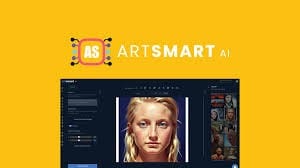
Overview:
ArtSmart AI provides tools for building structured prompts, helping users create more effective inputs for Stable Diffusion.
Key Features:
- Guided prompt creation
- Style presets and templates
- AI-assisted suggestions
Best For: Beginners learning how to write effective prompts.
Common Limitations of Stable Diffusion Prompt Tools
Stable Diffusion prompt tools can help speed up the process of generating prompts from images, but most of them are designed for a single function rather than a complete workflow. As a result, users may encounter several limitations when trying to move from prompt generation to actual content creation.
- Most tools only generate prompts without enabling direct content creation
- Output accuracy may vary depending on the complexity of the image
- Users need to switch between multiple platforms to complete a workflow
- Many tools are not optimized for video-based content creation
Part 3: Filmora as a Recommended Solution

Image to Prompt Feature in Filmora
Filmora has integrated a feature to analyze images and create text prompts for Filmora's users, working entirely inside the program. Filmora scans images for their components and relationships and styles and will create output-ready requests.
Why It’s Different
Standalone solutions offer one feature at a time. Among editing software, Filmora is unique. Thanks to its integrated options, Filmora allows users to create and apply image and video prompts without needing to change tools. Users get to save time and effort, thanks to a less complicated workflow.
Additional Capabilities
Filmora also offers a range of features that extend beyond prompt generation:
- AI image generation for creating visuals from prompts
- AI video generation for transforming prompts into motion content
- Built-in editing tools, including transitions, effects, and audio enhancements
secure download Part 4: How to Generate Stable Diffusion Prompts from Images in Filmora
Filmora integrates image analysis, prompt creation, and content generation on a single platform. This ranges from importing a picture, composing a prompt according to the picture's elements, output refining, to image or video content generation.
Follow the steps below to efficiently generate and use Stable Diffusion prompts from images in Filmora:
Step 1: Import or Select an Image
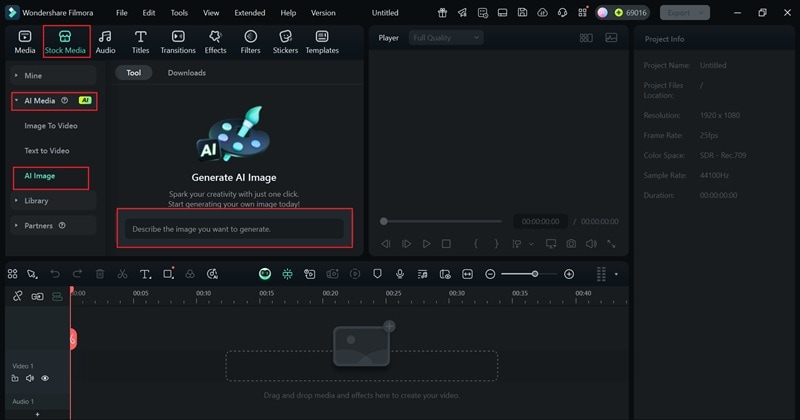
Open Filmora and import your image using the Media panel. Drag the image into the timeline or select it from your library.
Step 2: Generate the Prompt
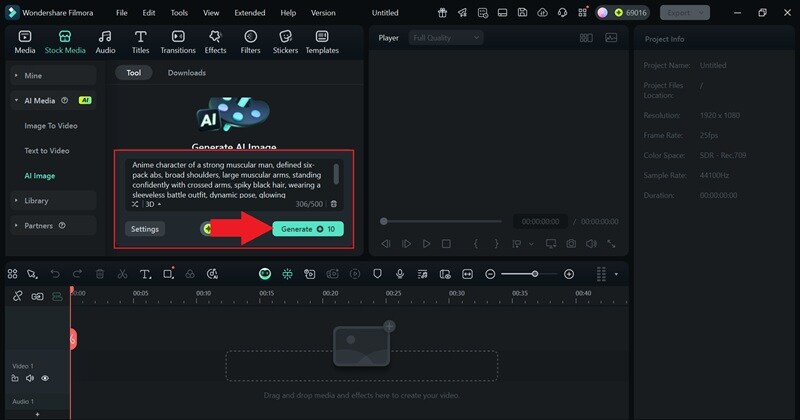
In the AI Tools section, choose the Image to Prompt feature. Filmora will be provided the image, and a prompt will be generated after you click the Generate button.
Step 3: Review and Refine the Prompt
Edit the generated prompt, if necessary. You can enhance descriptions, add keywords, or adjust details for improved output accuracy.
Step 4: Apply the Prompt and Export Content
Use the prompt within Filmora to create images or integrate it into your video project. Once your content is ready, click Export to save or publish your final output.
Conclusion
Most Stable Diffusion prompt tools create prompts from images, but most don’t integrate into other services, creating extra barriers and an inefficient workflow for the user.
However, using an integrated prompt generator and content creation tool for the same platform, the use of time, and the overall complications of the process can be greatly reduced. An all-in-one tool is likely the best choice for most workflow demands.
secure download FAQs About Stable Diffusion Prompt Tools
-
What is an image to prompt tool?
An image to prompt tool converts visual elements into structured text prompts used in AI-generated content. -
What is the best tool for this purpose?
The best tool depends on your needs, whether you prioritize detailed prompts, ease of use, or workflow integration. -
Can I use image prompts for video creation?
Yes, prompts generated from images can be used to create videos, animations, and other visual content using AI tools.